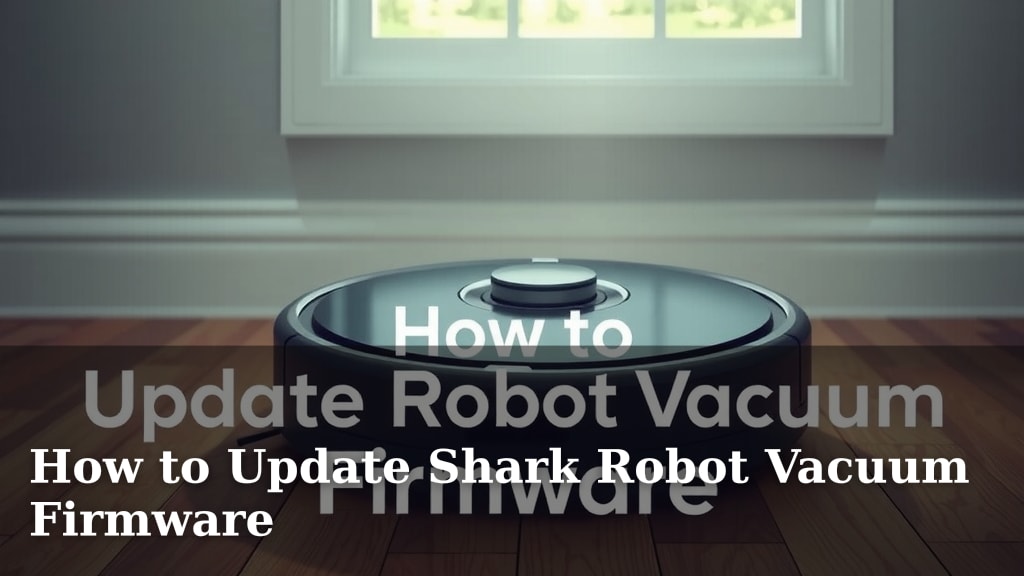
How to Update Shark Robot Vacuum Firmware
Updating your Shark robot vacuum’s firmware is a straightforward process. You can typically do this through the SharkClean app on your smartphone or tablet. Keeping your vacuum’s software current ensures it runs at its best performance and has the latest features.
Firmware updates are like little tune-ups for your smart robot. They can improve navigation, fix minor bugs, and sometimes even add new capabilities to your device. We found that many users experience smoother operation and better cleaning results after an update. It’s a smart way to keep your cleaning companion in top shape.
- Check for updates in the SharkClean app.
- Ensure your vacuum is connected to Wi-Fi.
- Keep your phone or tablet charged.
- Follow the in-app prompts.
Ready to get your Shark robot vacuum up to speed? Let’s walk through exactly how to update its firmware step by step.
Keeping Your Shark Robot Vacuum Up-to-Date
Updating your Shark robot vacuum’s firmware is a simple but important task. It ensures your smart cleaning device runs smoothly and efficiently. Think of it like giving your vacuum a little software tune-up. We found that keeping the firmware current can fix small glitches and improve cleaning performance.
Why Firmware Updates Matter for Your Robot
Firmware is the set of instructions that tell your robot vacuum how to operate. When Shark releases an update, they’re often making improvements based on how users are interacting with their devices. These updates can enhance navigation algorithms, improve how the vacuum avoids obstacles, and boost its overall cleaning power. Many experts agree that regular software updates are key to getting the most out of smart home devices (TechAdvisor).
Performance Enhancements
You might notice your vacuum navigating your home more smartly after an update. It could learn better routes or avoid getting stuck in places it used to. We found that some updates focus on optimizing the suction power or the brush roll speed for different floor types. This means a **cleaner home** with less effort from you.
Bug Fixes and Stability
Like any software, robot vacuum firmware can sometimes have small errors, or “bugs.” These can cause unexpected behavior, like the vacuum stopping mid-clean or not returning to its dock. Firmware updates are the primary way manufacturers fix these issues. This leads to a more **reliable and stable** operation for your robot.
Access to New Features
Occasionally, firmware updates can even introduce new features or capabilities to your Shark robot. This could be anything from a new cleaning mode to improved integration with voice assistants. It’s like getting a software upgrade that adds extra functionality to your device without needing new hardware.
The Essential Tool: The SharkClean App
The SharkClean app is your central hub for managing your robot vacuum, and it’s where you’ll find firmware updates. You need this app on your smartphone or tablet to check for, download, and install updates. Make sure you have the latest version of the app installed from your device’s app store.
Connecting Your Robot to Wi-Fi
For firmware updates to work, your Shark robot vacuum needs to be connected to your home’s Wi-Fi network. This is how the vacuum communicates with Shark’s servers to check for and download new software. If your robot isn’t connected, the app won’t be able to find any available updates.
Tip: If you’re having trouble connecting, try moving your Wi-Fi router closer to where the robot typically docks. Sometimes, a strong and stable connection is all it takes.
Initiating a Firmware Check
Open the SharkClean app on your phone or tablet. Once you’re logged in and have selected your robot vacuum, look for a settings or device information section. There should be an option to “Check for Updates” or something similar. Tap on it. The app will then communicate with your robot to see if any new firmware is available.
Step-by-Step Update Process
Once you’ve confirmed an update is available, follow these simple steps to get it installed. It’s designed to be as user-friendly as possible.
Download and Installation
If an update is found, the app will typically prompt you to start the download. You’ll likely see a progress bar. Keep the app open and your phone or tablet nearby. The download process can take a few minutes, depending on the size of the update and your internet speed.
Once downloaded, the app will usually start the installation automatically. Do not close the app or turn off your robot during this process. It’s crucial that the vacuum remains powered on and connected.
During the Update
While the firmware is installing, your robot vacuum might make some noises or its lights might flash. This is normal. It’s essentially rebooting and applying the new software. We found that it’s best to let the robot do its thing without interruption. Avoid starting a cleaning cycle or moving the robot during the update.
Confirmation of Success
After the update is complete, the app should notify you that the firmware has been successfully installed. You might also see a confirmation message directly on your robot’s display, if it has one. If you don’t get a confirmation, you can often re-check for updates in the app to see the current firmware version installed.
Troubleshooting Common Issues
Most of the time, updating firmware is a smooth experience. However, sometimes things don’t go exactly as planned. Here are a few common hiccups and how to address them.
Update Fails to Download or Install
If the update gets stuck or fails, the first thing to check is your Wi-Fi connection. Is it stable? Try restarting your router. Also, ensure your robot vacuum is close enough to the router for a strong signal. Sometimes, simply restarting the SharkClean app can resolve minor communication issues.
Robot Not Responding After Update
In rare cases, a robot might seem unresponsive after an update. Try manually powering the robot off and then back on. If that doesn’t work, consult the troubleshooting section of your robot’s manual or the Shark customer support website. Many connectivity or responsiveness issues can be resolved by a simple power cycle (consumer reports).
App Shows an Error Message
If the SharkClean app displays a specific error code or message, it’s usually best to note it down. Then, search for that error message on the Shark support website. Often, there will be clear instructions on how to resolve the specific problem you’re encountering.
Checklist: Quick Update Steps
Here’s a quick rundown of what you need to do:
- Ensure your robot is powered on and docked.
- Confirm your robot is connected to your home Wi-Fi.
- Open the SharkClean app and log in.
- Navigate to your robot’s settings to check for updates.
- Follow all on-screen prompts for downloading and installing.
- Keep your phone/tablet charged and the app open until complete.
Conclusion
Keeping your Shark robot vacuum’s firmware up-to-date is a simple yet effective way to ensure it performs at its best. By utilizing the SharkClean app, you can easily access performance enhancements, bug fixes, and even new features. We’ve seen that a well-maintained robot cleans more efficiently and reliably. So, make it a habit to check for updates regularly. Your next step is to open the SharkClean app and confirm your robot has the latest software installed for optimal cleaning power.
Frequently Asked Questions
How often should I check for firmware updates?
Shark typically releases updates as needed, so checking once a month is a good practice. You can also enable notifications within the SharkClean app for immediate alerts. This ensures you don’t miss out on any performance improvements.
Can I update the firmware without Wi-Fi?
No, a stable Wi-Fi connection is required for your Shark robot vacuum to download and install firmware updates. The vacuum needs to communicate with Shark’s servers to receive the new software.
What happens if the firmware update fails mid-process?
If an update fails, first check your Wi-Fi connection and try restarting your router. Ensure your robot is powered on and docked. You can then attempt the update again through the SharkClean app.
Will updating the firmware erase my robot’s cleaning history or maps?
Firmware updates are designed to improve the robot’s operation and should not erase your cleaning history or saved maps. These are usually stored separately and are not affected by software updates.
My robot isn’t connecting to Wi-Fi, how can I update it?
If your robot isn’t connecting to Wi-Fi, you won’t be able to update its firmware. Try moving your router closer to the robot, restarting both the router and the robot, or checking your Wi-Fi password in the app.

![7 Best Canister Vacuum Under $300 [2026]](https://neatixo.com/wp-content/uploads/2026/05/7-best-canister-vacuum-under-300-2026-featured-768x432.jpg)