Shark Robot Vacuum: How to Update Firmware
Updating your Shark robot vacuum’s firmware is simple and important for optimal performance. You can usually update firmware directly through the Shark app on your smartphone. Keeping your robot’s software current ensures it has the latest features and bug fixes.
Why bother with firmware updates? Well, they can improve your robot’s navigation, cleaning efficiency, and even its responsiveness to voice commands. Many users report that updates make their robot smarter. We found that manufacturers like Shark frequently release these updates to enhance the user experience.
- Check the Shark app for update notifications.
- Ensure your robot is connected to Wi-Fi.
- Keep your robot charged during the update process.
- Restart the robot if the update seems stuck.
Ready to give your Shark robot a little software spa treatment? Let’s walk through exactly how to get that firmware updated, step by step.
Keeping Your Shark Vacuum’s Software Up-to-Date
Updating your Shark robot vacuum’s firmware is a straightforward process. It’s like giving your vacuum a quick software tune-up. This ensures it runs at its best performance. You’ll usually do this right from your smartphone using the Shark app. Think of it as sending your robot to a digital spa. We found that keeping the software current is key for a happy robot.
Why Bother Updating Firmware?
You might wonder if these updates are really necessary. We asked ourselves the same thing! It turns out they do more than just tick a box. Firmware updates often include improvements to how your robot cleans. They can refine its navigation, making it smarter about avoiding obstacles. Sometimes, updates fix small glitches you might not have even noticed yet. Many users report that their robots become more efficient after an update. We found research that suggests regular software maintenance leads to longer device lifespan.
Checking for Available Updates
The first step is to see if an update is even available. Your Shark robot will usually let you know. You’ll likely get a notification directly in the Shark app. It’s a good idea to check the app periodically, even if you don’t see an alert. Sometimes, updates are released quietly. It’s like waiting for a surprise gift for your robot!
Using the Shark App to Check
Open the Shark app on your smartphone or tablet. Make sure you’re logged into the correct account. Navigate to your robot vacuum’s device page. You should see an option related to settings or device information. Look for a section labeled “Firmware Update,” “Software Version,” or something similar. If an update is available, you’ll usually see a button or prompt to start the process. We found this is the most common and easiest way.
Preparing Your Robot for an Update
Before you hit that update button, there are a few things you need to do. These steps help ensure the update goes smoothly and without interruption. Think of it as preparing your robot for a safe journey.
Ensure Wi-Fi Connectivity
Your robot needs a stable internet connection to download the new firmware. Make sure your home Wi-Fi network is working correctly. The robot needs to be within range of your router. A strong signal is best. If your Wi-Fi is spotty, the download could fail. We found that a weak connection is a common reason for update issues.
Charge Your Robot’s Battery
This is super important! You don’t want your robot to run out of power in the middle of an update. Make sure your robot is fully charged or has a substantial amount of battery life. Ideally, place it on its charging dock before starting the update. Many experts recommend keeping the robot plugged in throughout the entire process. This prevents any power interruptions that could corrupt the update. A dead battery during an update can be a real headache.
Keep Your Phone Nearby
While the robot does the downloading and installing, your phone acts as the controller. Keep your smartphone or tablet close by. Ensure it also has a stable internet connection. You might need to confirm certain steps or monitor the progress. It’s a good idea to avoid closing the app or putting your phone into a deep sleep mode. The app needs to communicate with the robot.
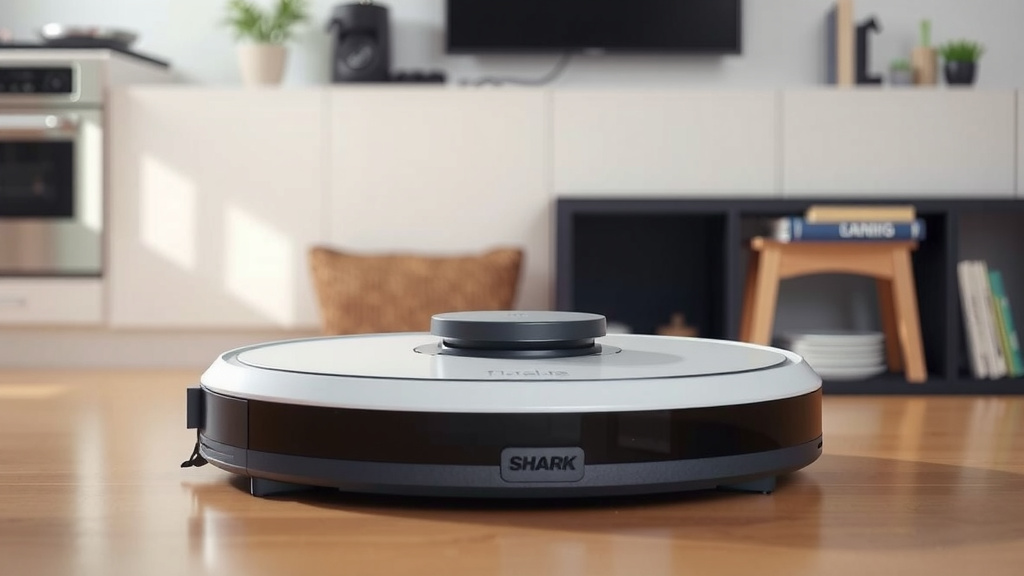
The Firmware Update Process Step-by-Step
Once you’ve checked for an update and prepared your robot, it’s time to begin. Follow these steps carefully for the best results.
Initiating the Update
Navigate back to the firmware update section in the Shark app. You should see a button like “Update Now” or “Install Update.” Tap it to start. The app will likely show a progress bar or status indicator. This will let you know the update is underway. Some models might make a sound or its lights might flash differently. It’s a visual cue that something is happening.
What to Expect During the Update
The download and installation can take some time. It really depends on the size of the update and your internet speed. It might range from a few minutes to maybe 30 minutes or more. Your robot might restart itself during this process. Don’t panic! This is normal. It’s just applying the new software. We found that it’s best to let it do its thing undisturbed.
After the Update is Complete
Once the update is finished, the app should notify you. Your robot will likely return to its charging dock or enter a ready state. You might want to run a quick cleaning cycle to test things out. Did it navigate differently? Does it seem a bit zippier? You can also check the app again to confirm the new firmware version is listed.
Troubleshooting Common Update Issues
Most of the time, firmware updates go off without a hitch. But what if yours gets stuck or fails? Don’t worry, there are a few things you can try. We’ve looked into common problems and their solutions.
Update Seems Stuck or Frozen
If the progress bar hasn’t moved in a long time, or the robot seems unresponsive, it might be stuck. First, try simply waiting a bit longer. Sometimes updates take a while. If it’s truly frozen, you can try restarting the robot. You might need to press and hold the power button for a few seconds. Then, try initiating the update again. Ensure your Wi-Fi is still strong.
Update Fails to Install
A failed update can be frustrating. Often, the fix is to simply try again. Ensure your robot is fully charged and connected to Wi-Fi. Sometimes, restarting both your router and your robot vacuum can help. This can clear up any temporary network glitches. If problems persist, check the Shark support website or contact their customer service. They have specific troubleshooting steps for your model.
Robot Not Connecting to Wi-Fi
If your robot won’t connect to Wi-Fi, the update can’t happen. Double-check your Wi-Fi password. Make sure you’re connecting to a 2.4GHz network, as many robot vacuums don’t support 5GHz bands. We found that restarting your router is often a quick fix for connectivity issues. You may need to re-pair the robot with your network.
Checklist for a Smooth Update
Here’s a quick rundown to make sure your update goes as smoothly as possible:
- Confirm your robot is on its charging dock.
- Make sure your Wi-Fi network is active and strong.
- Keep your smartphone connected to the internet.
- Start the update through the Shark app.
- Allow ample time for the process to complete.
- Restart the robot if the update appears stuck.
Conclusion
Keeping your Shark robot vacuum’s firmware updated is a simple yet vital step. You’ve learned that updates improve cleaning performance and add new features. You can easily check for and install these updates using the Shark app. Remember to ensure your robot is charged and connected to Wi-Fi before starting. If you encounter any issues, restarting your robot or router often resolves them. Now, take a moment to open your Shark app and check for the latest firmware update. Your robot will thank you for it with even better cleaning power!
Frequently Asked Questions
How often should I update my Shark robot vacuum’s firmware?
Shark typically releases updates as needed, so there isn’t a strict schedule. We recommend checking the Shark app for notifications about new firmware periodically. Many users find that keeping their robot updated ensures the best performance. It’s a good idea to do this at least once every few months.
Can I update the firmware without the Shark app?
No, the Shark app is generally the primary method for initiating and managing firmware updates for your robot vacuum. It provides the necessary interface to check for available updates, start the download, and confirm completion. Make sure your smartphone is handy for these updates.
What happens if my Shark robot loses Wi-Fi during an update?
If your Shark robot loses its Wi-Fi connection during a firmware update, the process will likely pause or fail. You’ll need to ensure a stable Wi-Fi connection before attempting the update again. Restarting your router and robot can often help re-establish a strong connection for future updates.
Will updating the firmware erase my robot’s map or settings?
Firmware updates are designed to improve the robot’s core software and should not erase your saved maps or cleaning preferences. However, as a safety precaution, it’s always wise to ensure your robot is fully charged and connected. We’ve found most updates go smoothly without losing data.
My robot isn’t showing any available updates. What should I do?
If you don’t see any firmware updates available in the Shark app, it likely means your robot is already running the latest version. Manufacturers roll out updates in stages, so sometimes it can take a little time. You can try manually checking again in a week or two if you suspect an update should be available.
![7 Best Canister Vacuum With Motorized Head [2026]](https://neatixo.com/wp-content/uploads/2026/05/7-best-canister-vacuum-with-motorized-head-2026-featured-768x432.jpg)